You build a course, you share the link, and then... nothing. Someone opened it, probably. Did they finish? Did they pass the quiz? Did they even get past the first section? Until now the honest answer on LearningStudioAI was "no idea."
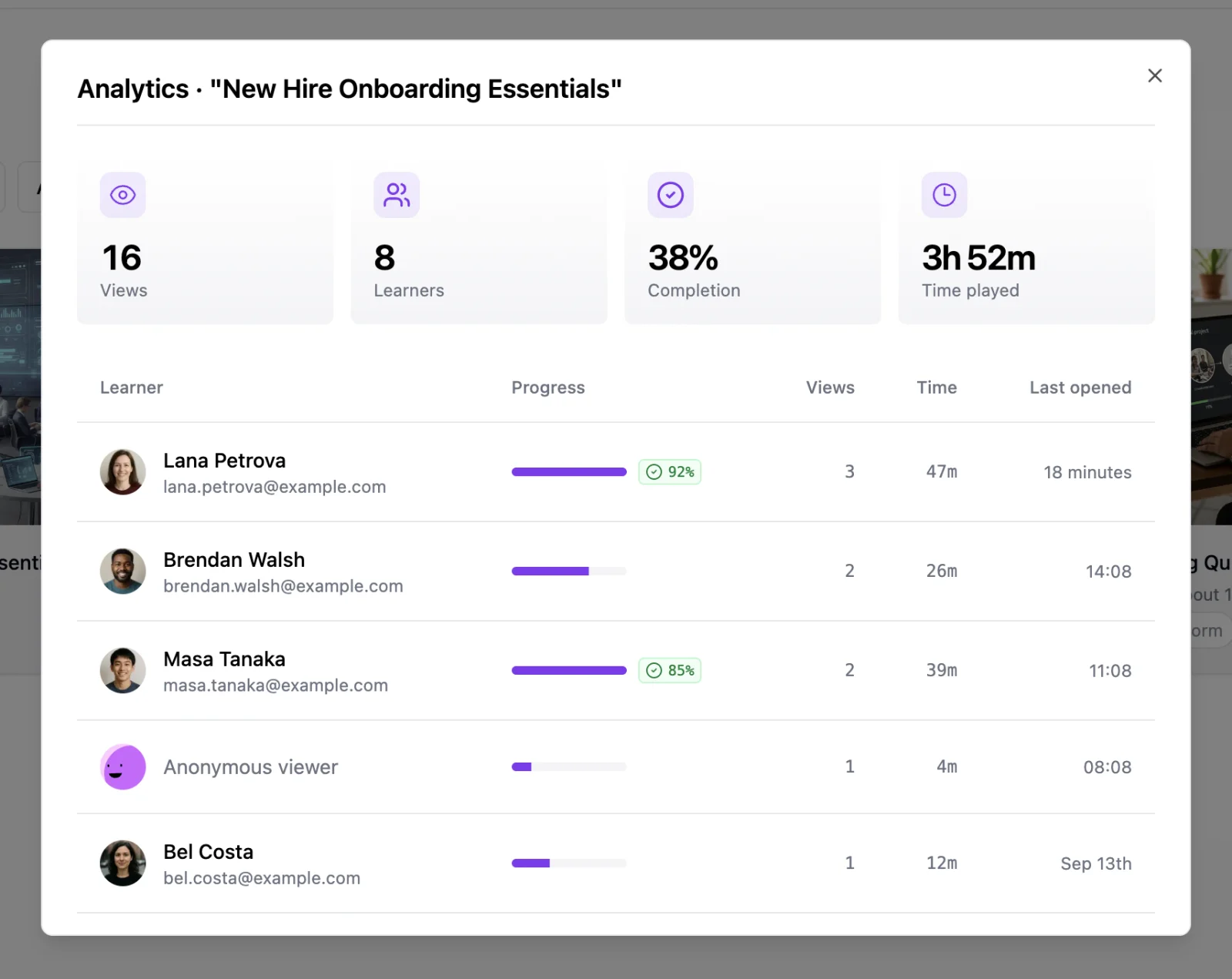
That changes today. Every course now has an Analytics view that shows what happened after you hit share: how many people viewed it, how many finished, how long they spent, and what they scored. And when you need to know who those people are, one setting turns the share link into a light sign-in so learners show up by name.
No LMS required. No accounts to create for your learners in advance. The same link you already share, now with a report behind it.
What you see
Open Analytics on any course and you get two things: the totals and the list.
The totals sit at the top in four cards:
- Views: how many times the course was opened
- Learners: how many distinct people opened it
- Completion: the share of learners who reached the end
- Time played: total active time across everyone, so a course that was left open in a background tab does not inflate the number
Learners who viewed the course without signing in appear as Anonymous viewer. Their progress is still tracked; you just do not know their name. If that is not enough for your use case, keep reading.
One thing to know up front: progress, completion, and quiz scores are tracked for the two Course Studio formats, Longform and Presenter. Classic and OnePage courses get views and time spent only. More on that below.
Where to find it
Analytics is one click away from wherever you manage a course:
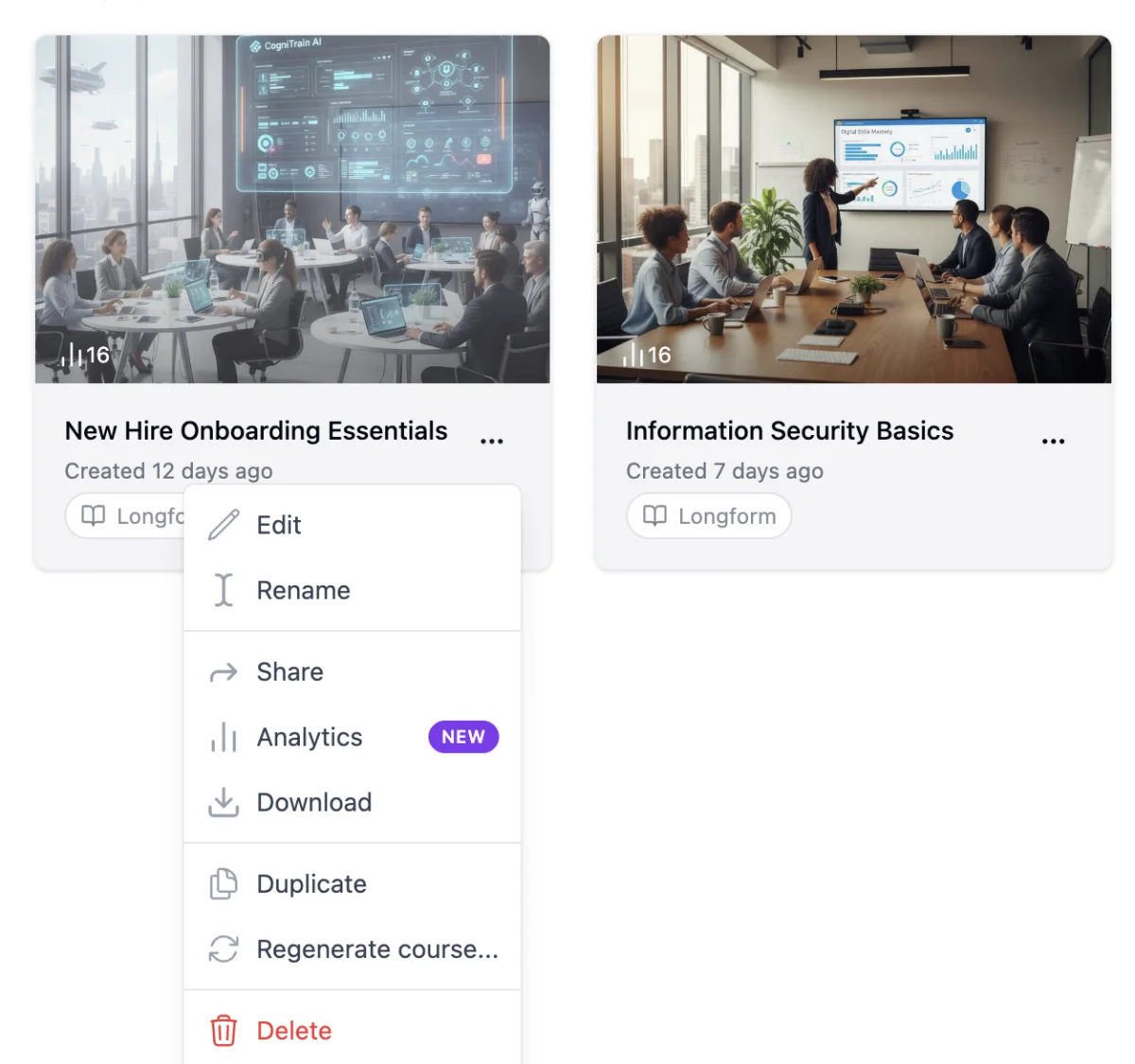
- On the Courses page, open the "..." menu on any course card and choose Analytics
- In the editor, click the view counter next to the course title
- In the Share dialog, click View analytics in the footer
Know who finished: require identification
Anonymous tracking is fine when you are sharing a public lesson and only care about totals. It is not fine when you are onboarding new hires, running a compliance module, or delivering a paid course and need to confirm that a specific person completed it.
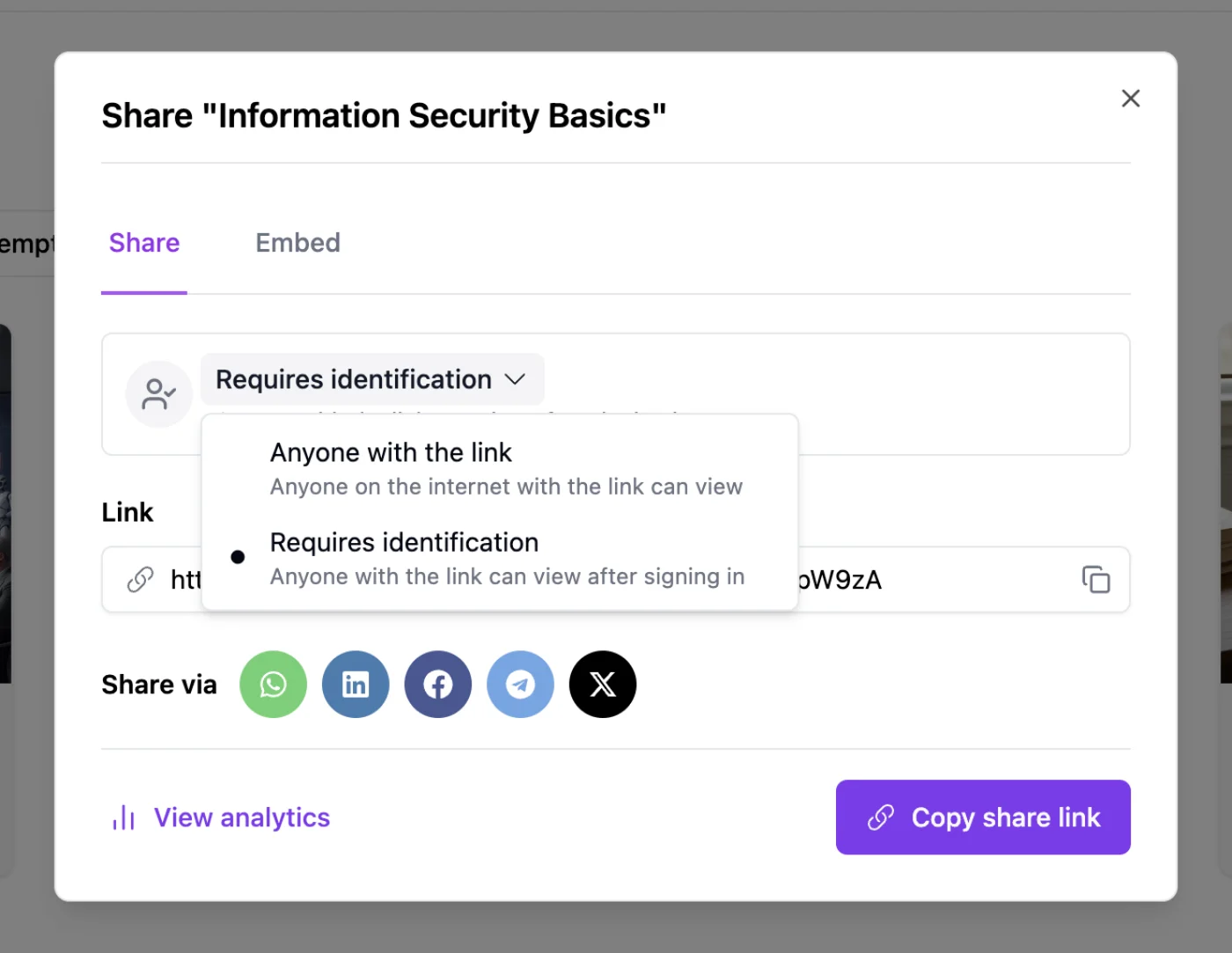
For that, open the Share dialog and change the access setting from Anyone with the link to Requires identification.
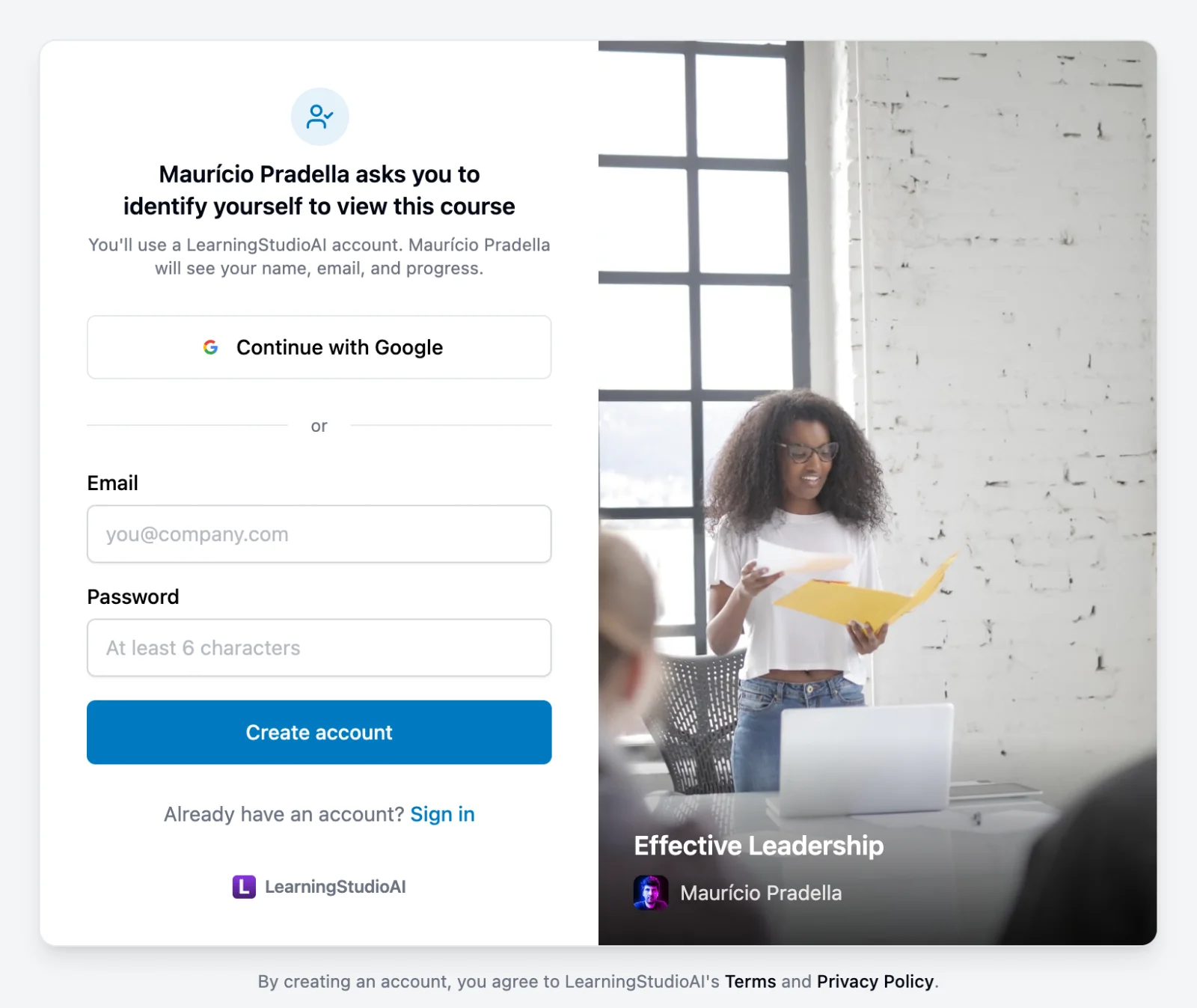
With identification on, anyone opening the link sees a short sign-in card before the course loads. They can continue with Google or create a free LearningStudioAI account with an email and password. The card says plainly who is asking and what they will see: your name, and the fact that you will see their name, email, and progress. No surprises on either side.
Once signed in, the learner gets the course as usual, with one addition: a thin bar above the player showing who they are signed in as and a sign-out link. That matters on shared computers in a classroom or a warehouse break room, where the next person should not inherit the previous one's progress.
Back in your Analytics view, those learners now appear with their name and email. Returning learners are recognized, so someone who opens the course three times across a week is one row with three views, not three strangers.
Progress that survives a refresh
Tracking is not only for you. When a learner comes back to a course, the player picks up where they left off: the section they were on, what they completed, and their quiz results. This works for identified learners on any device they sign in from, and for anonymous learners on the same browser.
What counts as complete
For Longform and Presenter courses, a learner is complete when they have gone through every content section. If the course has a graded quiz, the row also shows passed or failed against the passing score you set, along with the percentage.
Progress is measured against the course as it is today. If you delete a section after some learners already went through it, their progress recalculates against the new outline instead of showing a stale 110%.
Classic and OnePage courses use a lighter model: views and time are tracked, but section-level progress and quiz scores are not, so their Analytics view has no Completion card and no Progress column. If you want the full picture for an older course, regenerate it as Longform or Presenter from Course Studio.
Views, then and now
Learner tracking started on September 9, 2026. Anything that happened on a share link from that day on is in the table.
If you shared a course before then, your lifetime view count is still there. The Analytics view shows it as the Views card, and any views that predate learner tracking appear on a single Untracked views row at the bottom of the table, so the column always adds up to the card. Nothing was lost; it just was not attributed to anyone yet. New courses start clean, with every view attributed from the first open.
Privacy, briefly
Learners are told exactly what is collected before they sign in. You see the name, email, and progress of learners who identified themselves on your courses, and nothing else about them. Anonymous learners are tracked with a browser fingerprint that cannot be linked to a person. When you delete a course, its learner records are deleted with it.
Tracking without the LMS overhead
The usual way to know whether someone finished a course is to run it through an LMS. That means exporting a package, importing it, creating learner accounts, enrolling people, and sending them login instructions before anyone has seen a single slide. For a team of twelve, that setup often takes longer than the course.
Here it is one link. You share it the way you already do, over WhatsApp, Slack, or email. A learner opens it, and if you asked for identification, signs in with Google or an email in about ten seconds. No import, no enrollment, no seat to provision, no password reset tickets. They read, they finish, and your Analytics view already has the answer.
That covers most of the reasons people reach for tracking in the first place: a client wants proof that their staff took the training, a manager wants to know who has not started, a course creator wants to see whether learners drop off at section three. None of those need a platform, they need a report.
If you do run an LMS, nothing changes for you. Export SCORM as before, and the package reports completion and scores to your LMS exactly as it always did. Link tracking and SCORM tracking live side by side, so you can share a link for a quick pilot and export SCORM for the formal rollout.
Available now
Learner analytics is live for every course on every plan. Open any course you have already shared and click Analytics to see what has been happening. To start collecting names, flip the access setting in the Share dialog to Requires identification. The link stays the same, so there is nothing to resend.