Resolved an issue where the "Add Section with AI" feature would ignore the topic typed or selected by the user, sending an empty value to the server and causing a validation error. The generated section now correctly uses the provided topic.
Resolved an issue where images were not appearing in exported PDFs. The PDF generator now properly waits for all course content and images to fully load before generating the file.
Resolved an issue where the audio recorder component could cause the application to fail loading. The audio recording plugin is now loaded asynchronously to prevent blocking the main application flow.
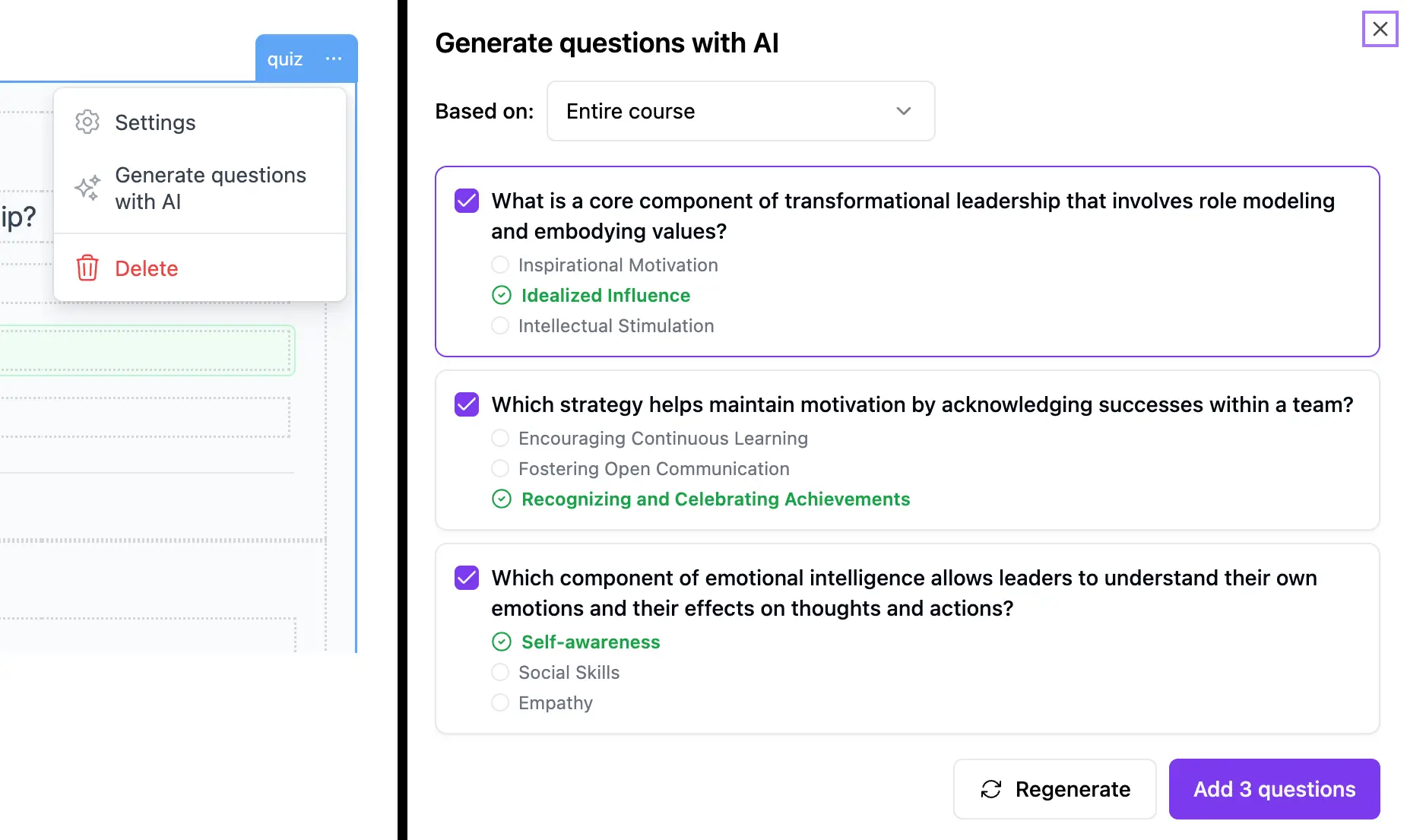
You can now generate quiz questions automatically using AI. Simply select a quiz block in your course and click the AI button to generate questions based on your course content. The AI analyzes your text blocks and creates relevant multiple-choice questions, avoiding duplicates with existing questions.
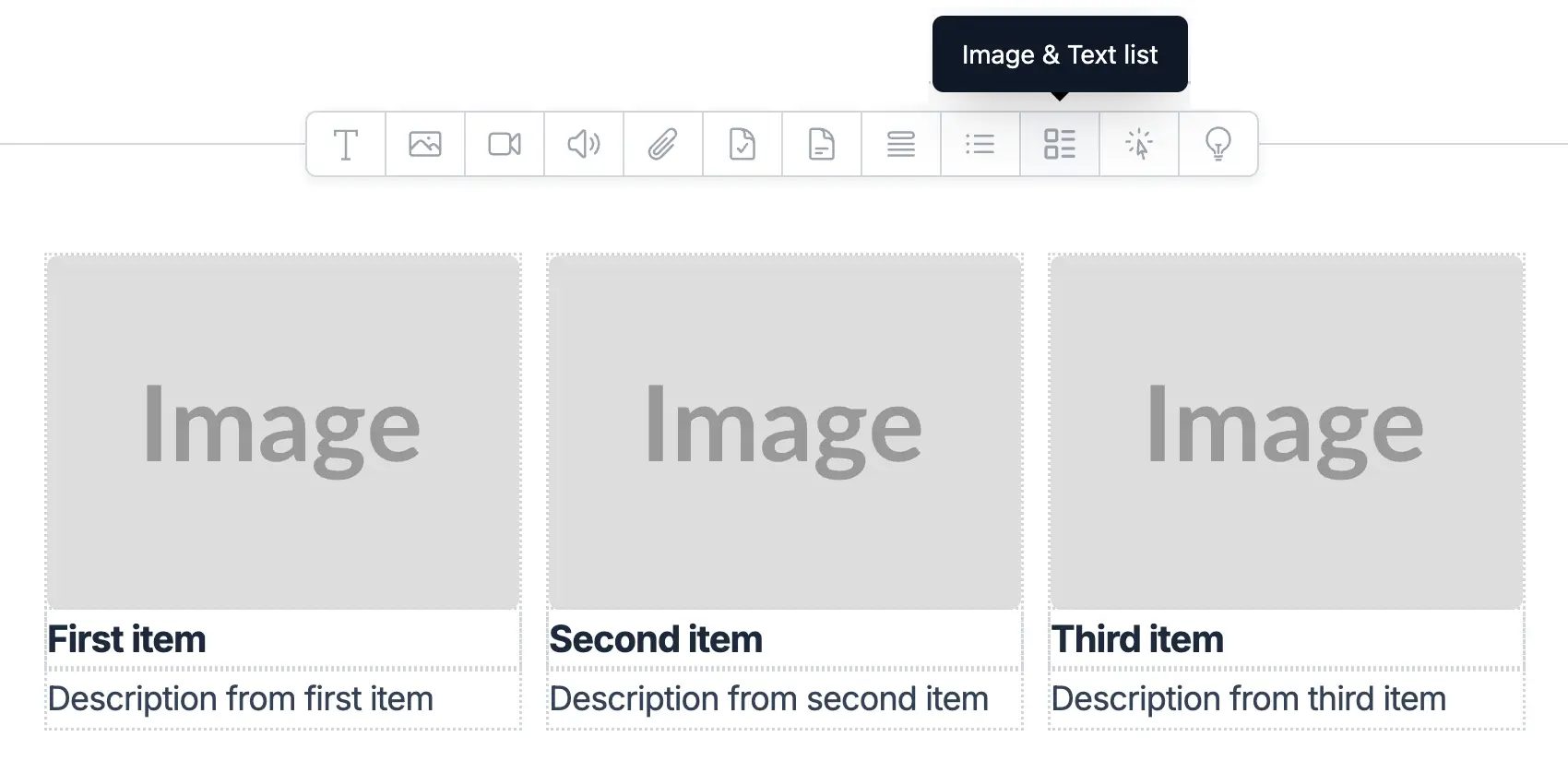
A new list block type is now available: "Image & Text List". This block allows you to create visually appealing lists where each item includes an image, title, and description. Perfect for showcasing products, team members, features, or any content that benefits from visual representation.
Resolved an issue where SCORM 2004 4th Edition packages failed to upload on some LMS platforms due to an invalid XML declaration in the manifest file. The XML declaration must be the first line of the file, and a misplaced comment was causing parsing errors. Additionally, added sanitization to remove UTF-8 BOM and any content before the XML declaration for broader LMS compatibility.
Resolved an issue where the delete confirmation overlay would disappear immediately when clicking the Delete button from the editor dropdown menu. The confirmation now stays visible long enough for users to confirm or cancel the action.
Greek is now fully supported. You can create courses directly in Greek and set the course player language to Greek to display all interface labels in Greek for your learners.
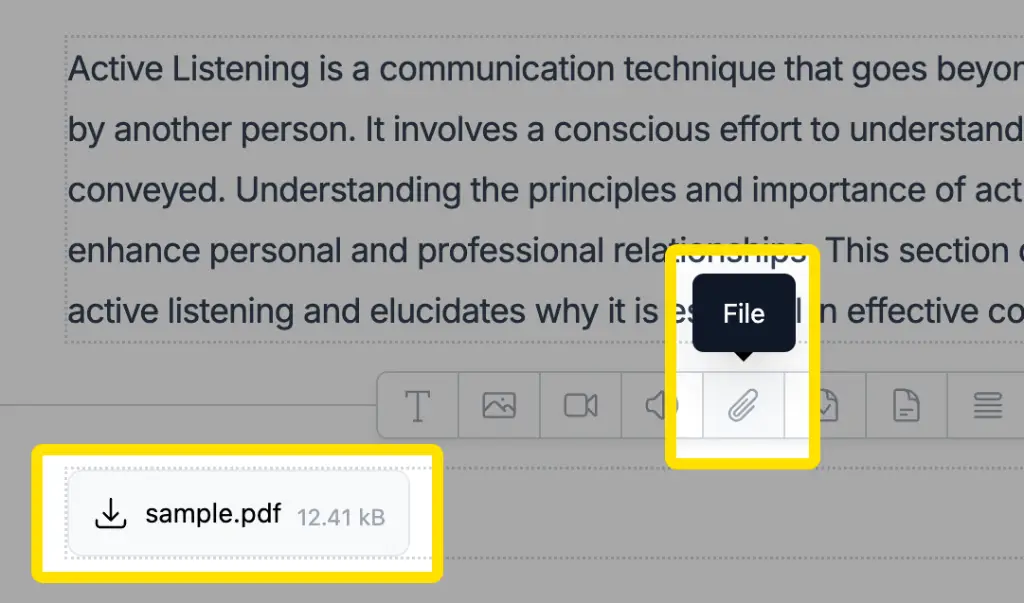
You can now attach downloadable files directly to your course content. For example, if you have a paragraph explaining a topic, you can include a downloadable PDF or document for learners to explore. Supported file types are .doc, .docx, .ppt, .pptx, .pdf, .xls, and .xlsx — up to 50MB per file.
Resolved an intermittent issue where some courses were not loading properly on mobile devices. The loading process is now more reliable across all platforms.
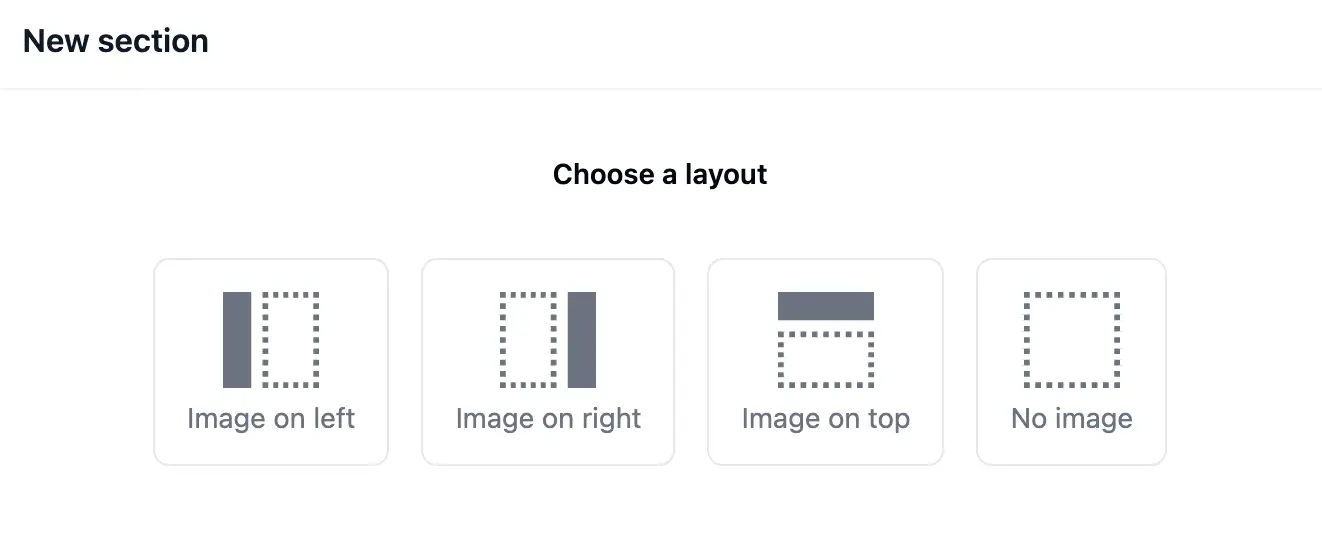
When creating a new section in Classic-format courses, you can now choose the layout style right away — such as image on the left, right, top, or no image at all. This gives you more flexibility and control from the start.
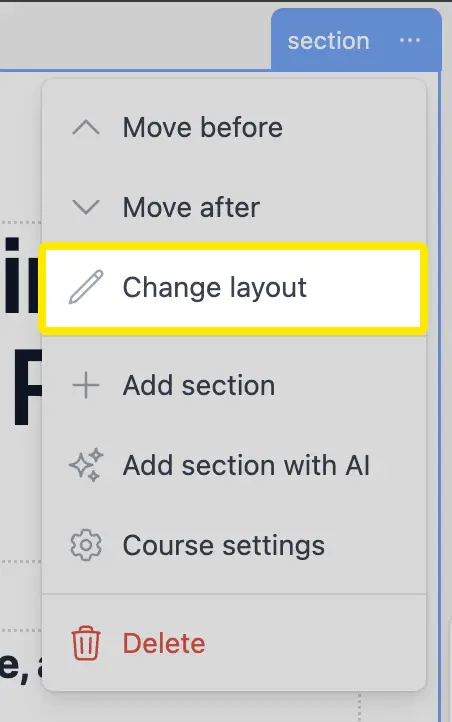
You can now change the layout of an existing section in Classic-format courses. Switch between different image and content arrangements to better suit your content flow.
Resolved an issue where adding a new block could unintentionally delete the previously inserted one. You can now safely add blocks without affecting existing content.
You can now edit the size and alignment of images within your course content. This gives you more control over the visual layout and presentation of your materials.
Some LMSs require SCORM 2004 courses to initialize the score as zero, even when the course doesn’t contain a quiz. We’ve updated our SCORM 2004 exports to initialize the score to 0 when the course starts to ensure broader compatibility.
Fixed an issue where the course player (for Classic course types) had excessively large fonts on mobile, causing unnecessary vertical scrolling. The layout is now properly optimized for smaller screens.
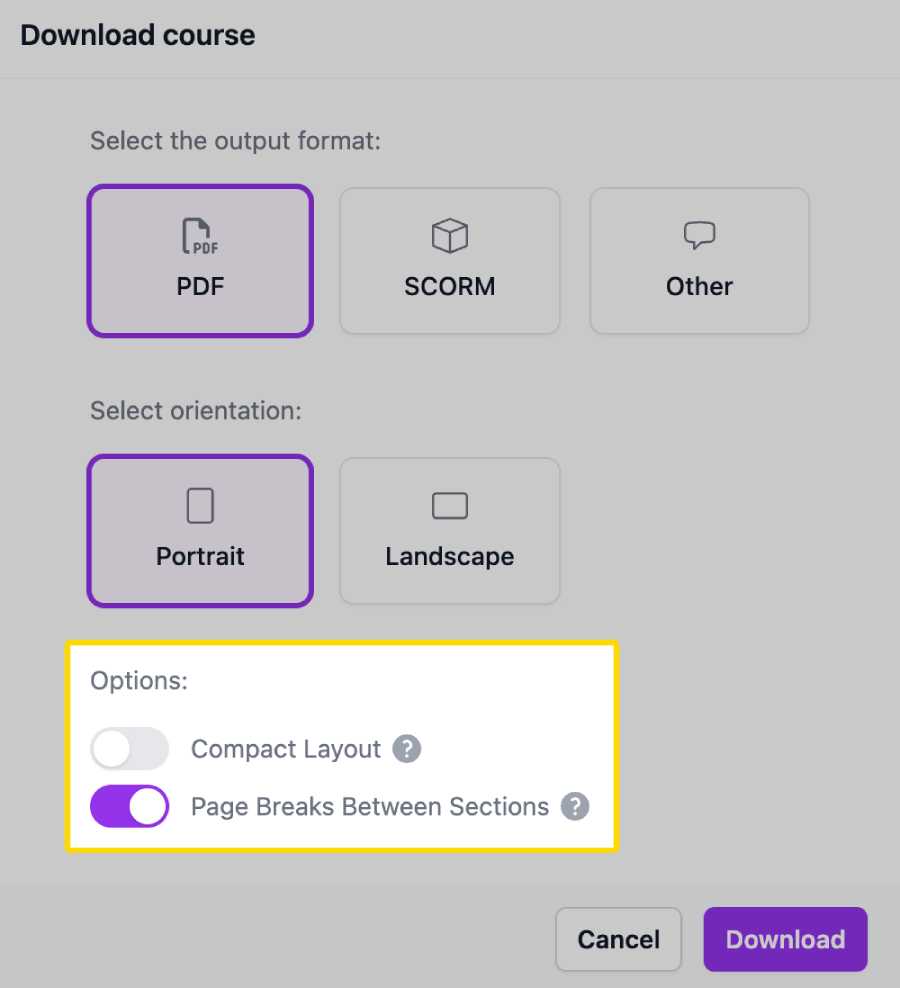
Users can now customize their course PDFs with two new options:
Resolved an issue that, in some cases, caused errors when downloading courses as PDF. The issue occurred when certain content was undefined.
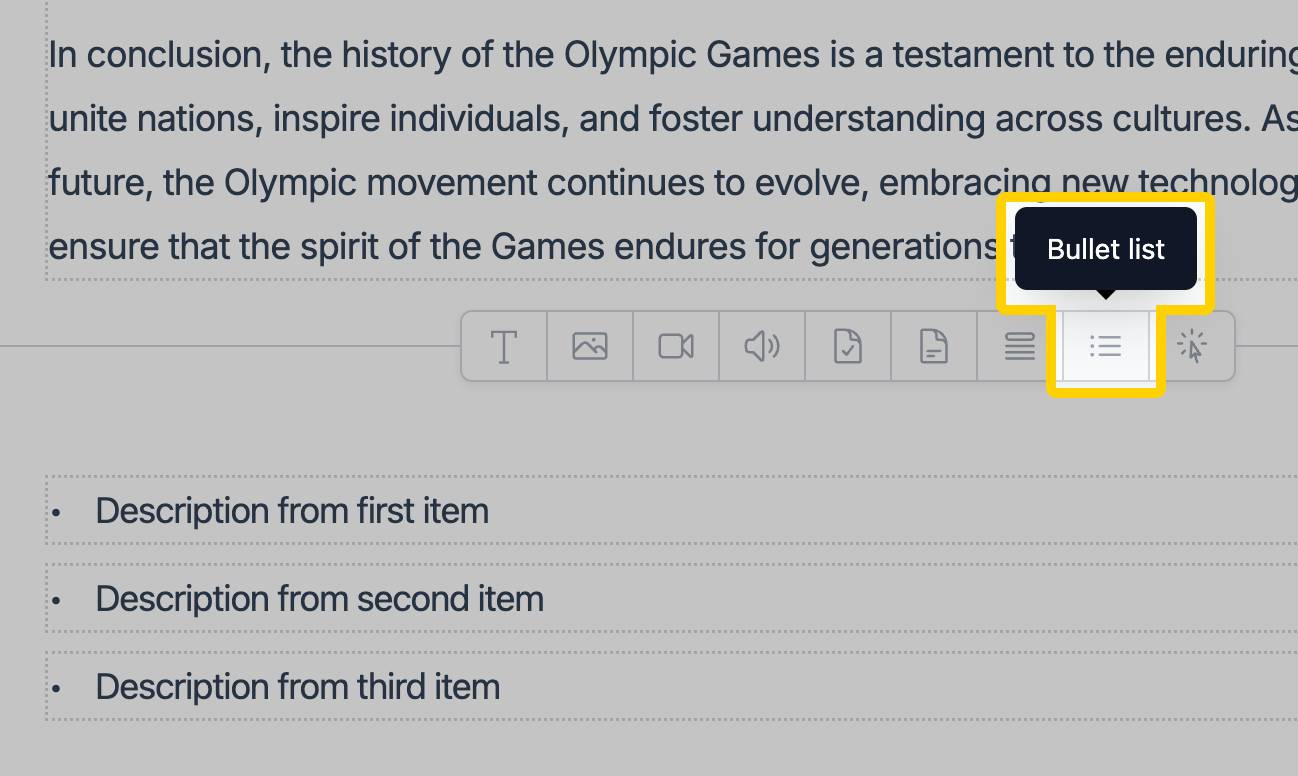
We’ve added a new block type: "Bullet List". This block allows users to easily create and format bullet-point lists in their courses, improving content organization and readability.
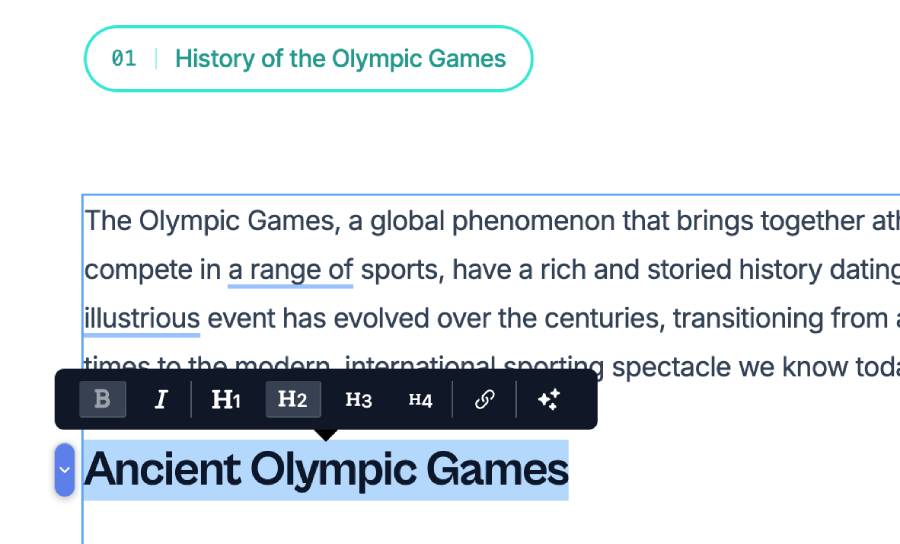
Users can now format text as headings (h1, h2, h3...) in html and text blocks. This enhancement makes it easier to organize content and improve readability.
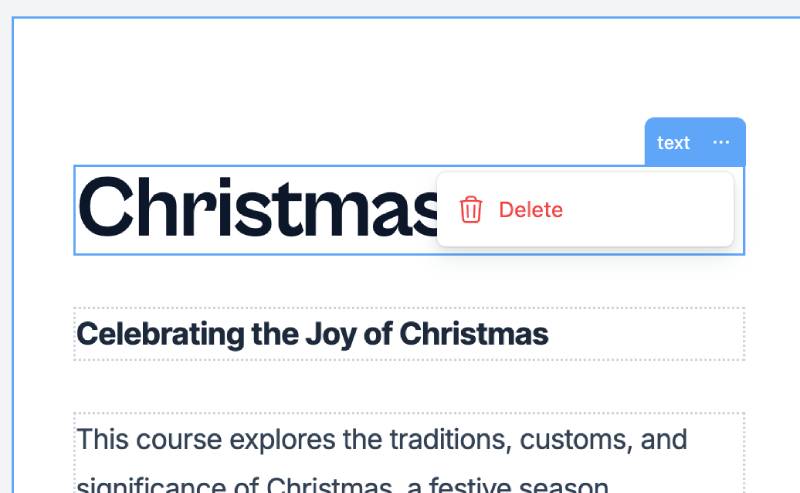
There was an issue where the text block could not be removed in the classic course format. This issue has been fixed.
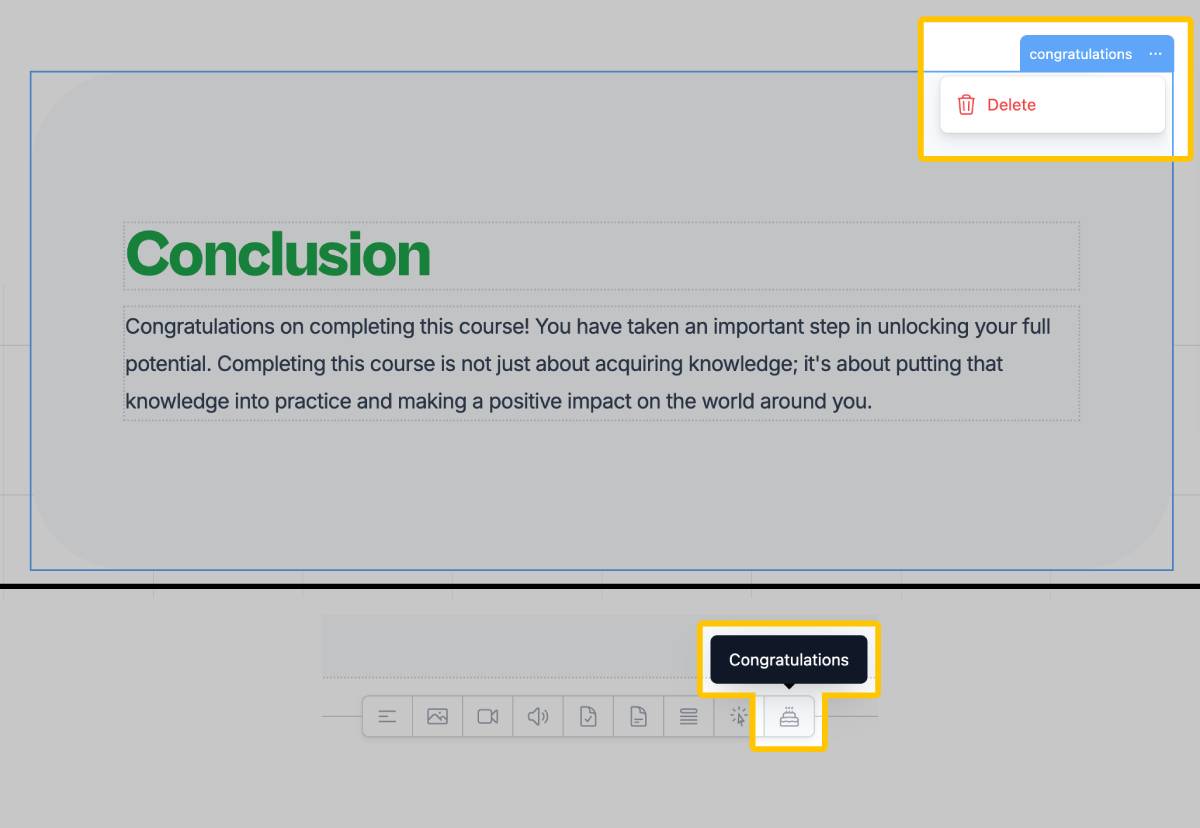
You can now add or remove the Congratulations section from your course. This section is displayed when the learner completes the course.
Please note:: This section is only available on courses with classic format.
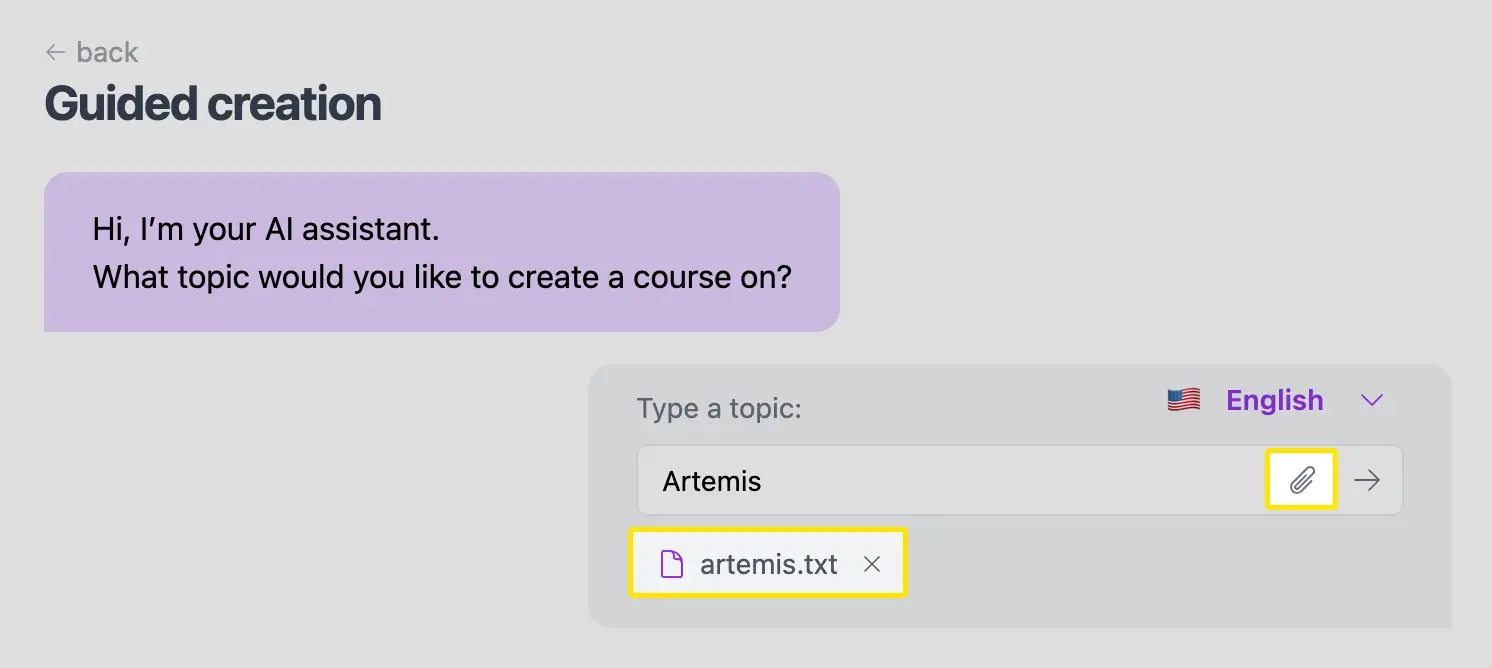
For existing courses, you can now create a new section with AI. Just provide the topic, or select one from suggestion, and the AI will generate the content for you.
We are excited to introduce the "Edit with AI" feature, designed to streamline your content creation and editing process. This powerful tool allows you to enhance, condense, or rephrase text effortlessly using AI technology. Here’s how it works:
When you are editing a course, simply select a paragraph, right-click, and choose the "sparkles" icon. This action will open a modal with three AI-powered options:
Enhance your course editing experience with the new Insert Block Between Paragraphs feature, available in the one-page format. When editing, simply position your cursor at the beginning or end of a paragraph and press Enter. A plus button will appear on the left side. Clicking this button reveals a variety of block options you can insert, such as images, videos, and lists.
After selecting a block, it will be seamlessly inserted between your paragraphs, effectively splitting the text into two parts with the new block in the middle.
Please note: This feature may not work properly with text that has been pasted from other sources with different formatting.You can now add images to your courses. Choose between search for royalty-free images, or upload from your computer.
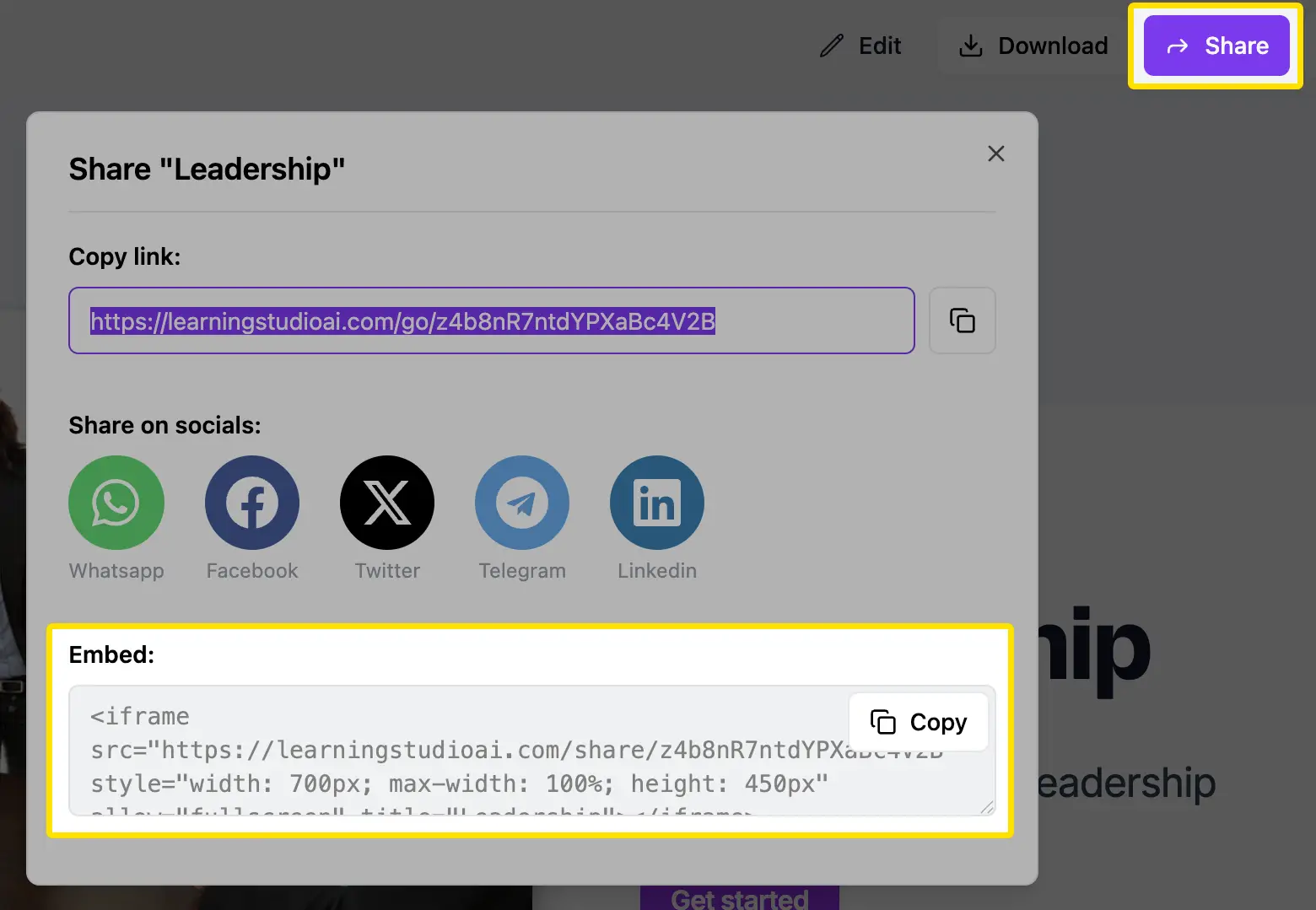
Created courses can now be embedded into CMS platforms like WordPress, Webflow, and Notion. This allows users to host their courses within their own system while managing access through their existing authentication settings.
Note: Ensure that your CMS supports embedding HTML code from external domains. Some platforms may restrict iframe embeds for security reasons.
You can now add audio to your courses. Choose from three options:
Customize your course experience with the following options in the course settings modal:
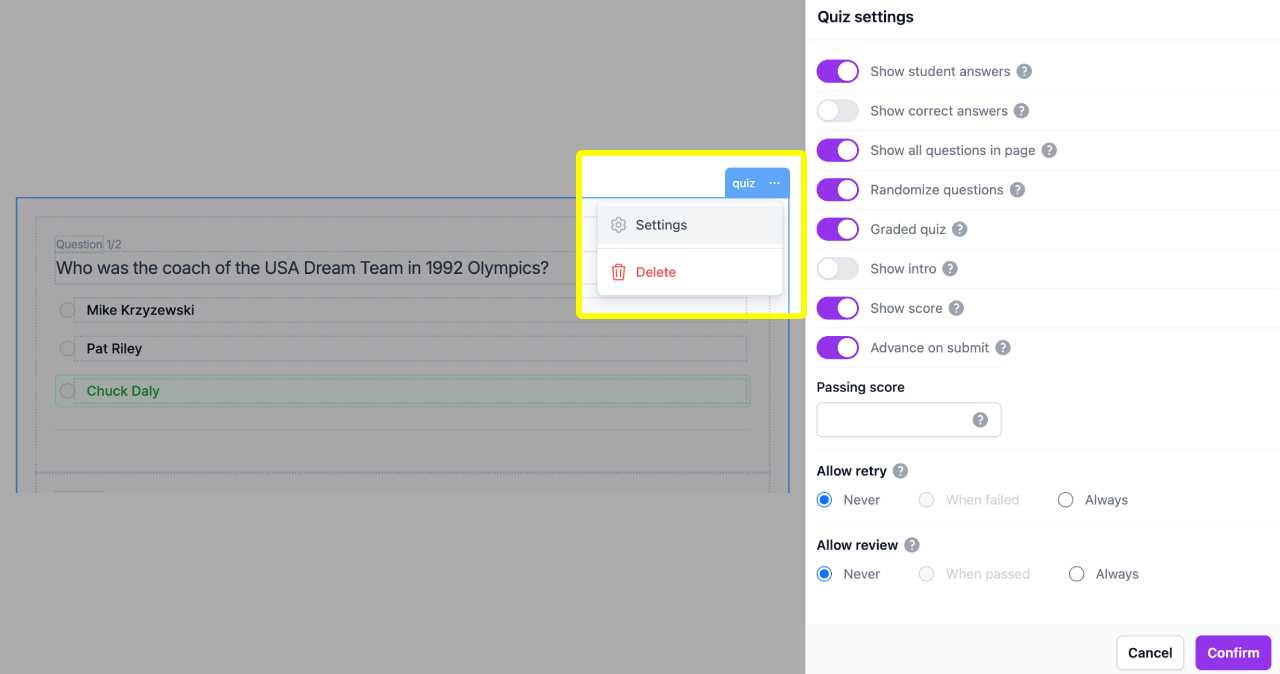
You can now customize quiz settings directly within the course editor. Adjust options such as showing student answers, randomizing questions, setting passing scores, and controlling retry and review rules, all from an intuitive settings menu.
You can now add videos to your courses. Paste URL from streaming services such as Youtube or Vimeo, or upload from your computer.
You can now download your course as SCORM package. This allows you to import your course to any SCORM-compliant LMS.
SCORM is a standard for e-learning that allows you to track and report user activity. It stands for Sharable Content Object Reference Model.
To use SCORM, a Learning Management System (LMS) is required. Some popular LMS that support SCORM are ScormCloud, Moodle, and TeachFloor.