Creating an online course used to take weeks. You had to outline everything manually, write each lesson, design slides, record videos, and piece it all together in an authoring tool. Most people gave up somewhere in the middle.
AI changes that. With the right tools, you can go from a rough idea to a published course in a single afternoon. This guide shows you exactly how to do it.
---
What You Need Before Starting
You don't need much:
- A topic you know well. This could be a professional skill, a hobby, compliance training, or academic content. If you can explain it to someone, you can turn it into a course.
- Existing materials (optional). PowerPoints, PDFs, Word docs, or even rough notes. AI can transform these into structured lessons.
- An AI course creation tool. We'll use LearningStudioAI for this guide, but the principles apply to any AI-powered course builder.
---
Step 1: Define Your Course Topic and Audience
Before generating anything, get clear on two questions:
1. What will learners be able to do after completing this course? Be specific. "Understand Excel" is vague. "Create pivot tables and VLOOKUP formulas in Excel" is actionable.
2. Who is taking this course? Beginners need more context and simpler language. Experts want depth and can skip fundamentals.
Write a one-sentence course goal. For example:
> "By the end of this course, HR managers will be able to conduct compliant performance reviews using our company's new framework."
This sentence guides everything the AI generates. The clearer you are, the better your output.
---
Step 2: Generate Your Course Structure
This is where AI saves the most time. Instead of staring at a blank outline, describe your course and let AI propose a structure.
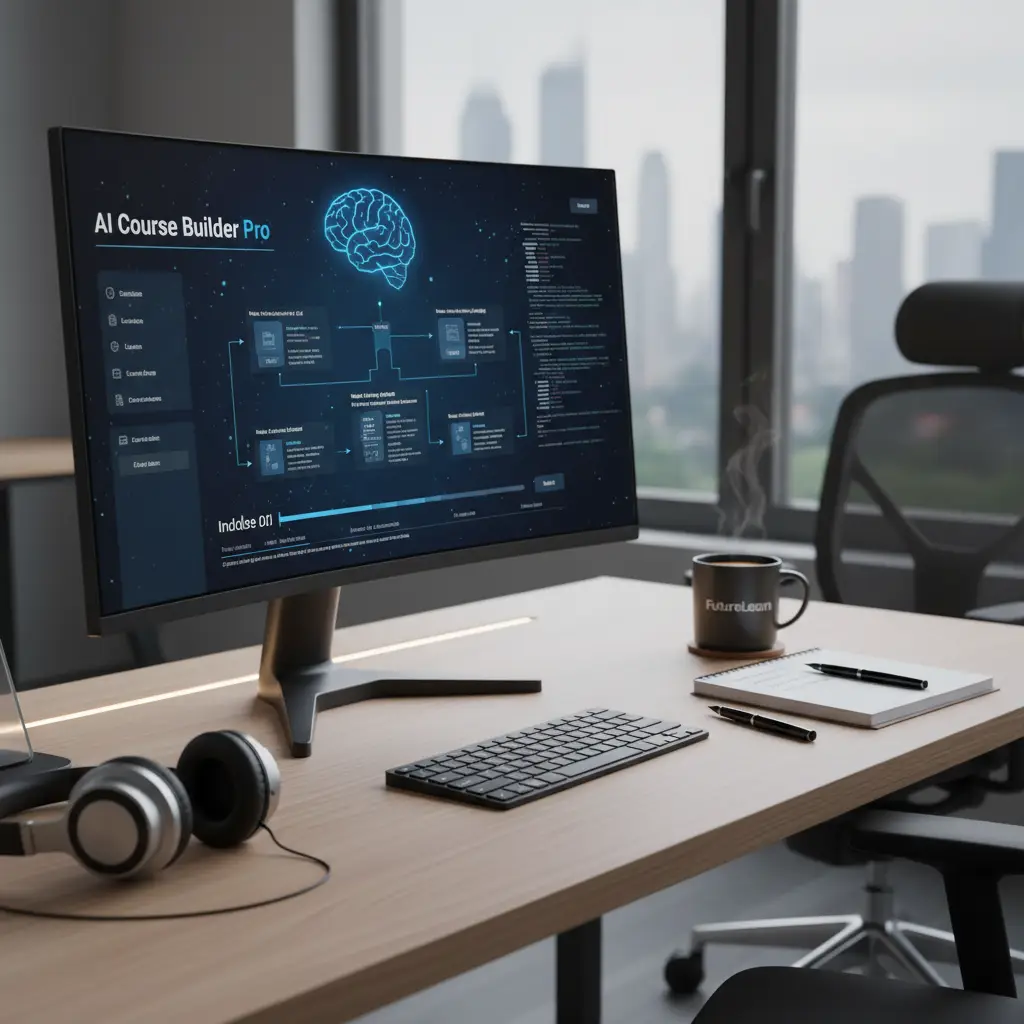
In LearningStudioAI, you start by telling the AI assistant what your course is about. It asks clarifying questions (target audience, depth, format preferences) and then generates a full outline with modules and lessons.
Tips for better structures:
- Start with 3-5 modules for a typical course. More than 7 modules often means you're covering too much.
- Each module should have 3-6 lessons. Shorter is usually better for engagement.
- Include a mix of content types: explanations, examples, practice activities, and assessments.
---
Step 3: Generate Lesson Content
With your structure set, it's time to fill in the lessons. You have two options:
Option A: Generate from scratch
For each lesson, the AI writes explanatory text based on the topic. You can guide the tone (conversational vs. formal), depth (overview vs. detailed), and format (paragraphs, bullet points, numbered steps).
Option B: Transform existing materials
Upload your PowerPoint, PDF, or Word document. The AI extracts the content and restructures it into proper lessons with clear explanations, not just bullet points on slides.
This second option is powerful for corporate trainers and educators who already have materials but need to convert them into a proper course format.
Editing as you go:
AI-generated content is a starting point, not a final draft. Read through each lesson and:
- Add your own examples and anecdotes
- Remove anything that doesn't fit your style
- Expand sections that need more detail
- Use the "Edit with AI" feature to rewrite unclear passages
---
Step 4: Add Quizzes and Knowledge Checks
Courses without assessments are just reading material. Quizzes serve two purposes:
1. Reinforce learning. Retrieving information strengthens memory. 2. Track progress. For compliance or certification courses, you need proof that learners engaged with the material.
AI can generate quiz questions automatically based on lesson content. In LearningStudioAI, you click "Add Quiz" and the AI proposes multiple-choice, true/false, or open-ended questions.
Quiz best practices:
- Add a short quiz after each module (3-5 questions)
- Mix question types to keep it interesting
- Include at least one question that requires applying knowledge, not just recalling facts
- Provide feedback for wrong answers that explains the correct response
---
Step 5: Add Media (Images, Video, Audio)
Text-heavy courses lose attention. Break up content with:
Images
- Search for royalty-free images directly in the editor
- Use screenshots for software tutorials
- Add diagrams for complex processes
Video
- Embed videos from YouTube or Vimeo
- Upload your own recordings
- Mix talking-head videos with screen recordings
Audio
- Add narration using text-to-speech (the AI reads your lesson content aloud)
- Upload recorded audio files
- Let learners listen instead of read for accessibility

Text-to-speech is particularly useful for quick course creation. You don't need to record anything. The AI generates natural-sounding narration from your written content.
---
Step 6: Review and Polish
Before publishing, go through the entire course as a learner would:
Content review:
- Does each lesson flow logically to the next?
- Are there gaps where learners might get confused?
- Is the language appropriate for your audience?
- Do all images display correctly?
- Do embedded videos play?
- Are quiz questions clear and answers correct?
- Most learners prefer lessons under 10 minutes
- If a lesson feels too long, split it into two
---
Step 7: Export or Publish
You have several options for distributing your course:
Share directly
Get a link and share it via email, WhatsApp, Slack, or social media. Learners access the course in their browser. No LMS required.
Export as SCORM
SCORM packages work with any Learning Management System: Moodle, Canvas, Blackboard, TalentLMS, and dozens of others. Upload the SCORM file and your LMS tracks completion, quiz scores, and time spent.
Export as PDF
Some learners want a printable version. Export the course as a formatted PDF document they can reference offline.
Embed on your website
Get an embed code and place the course directly on your site or members area. Works with WordPress, Wix, Squarespace, Kajabi, and membership platforms like Kiwify or Hotmart.
Choose the format that matches how your learners will access the content.
---
Real Examples: What You Can Create
Here's what different people build with AI course creation:
Corporate trainer:
- 30-minute compliance course on data privacy
- Uploaded existing PowerPoint deck
- AI restructured into 4 modules with quizzes
- Exported to SCORM for company LMS
- 2-hour photography basics course
- Generated structure and content from scratch
- Added video demonstrations and image examples
- Shared via direct link for free access
- Converted semester lecture notes into 8-module course
- Added recap sections and self-assessment quizzes
- Students access as supplementary material
- New employee onboarding course
- Combined company handbook PDFs with AI-generated explanations
- Embedded in company intranet
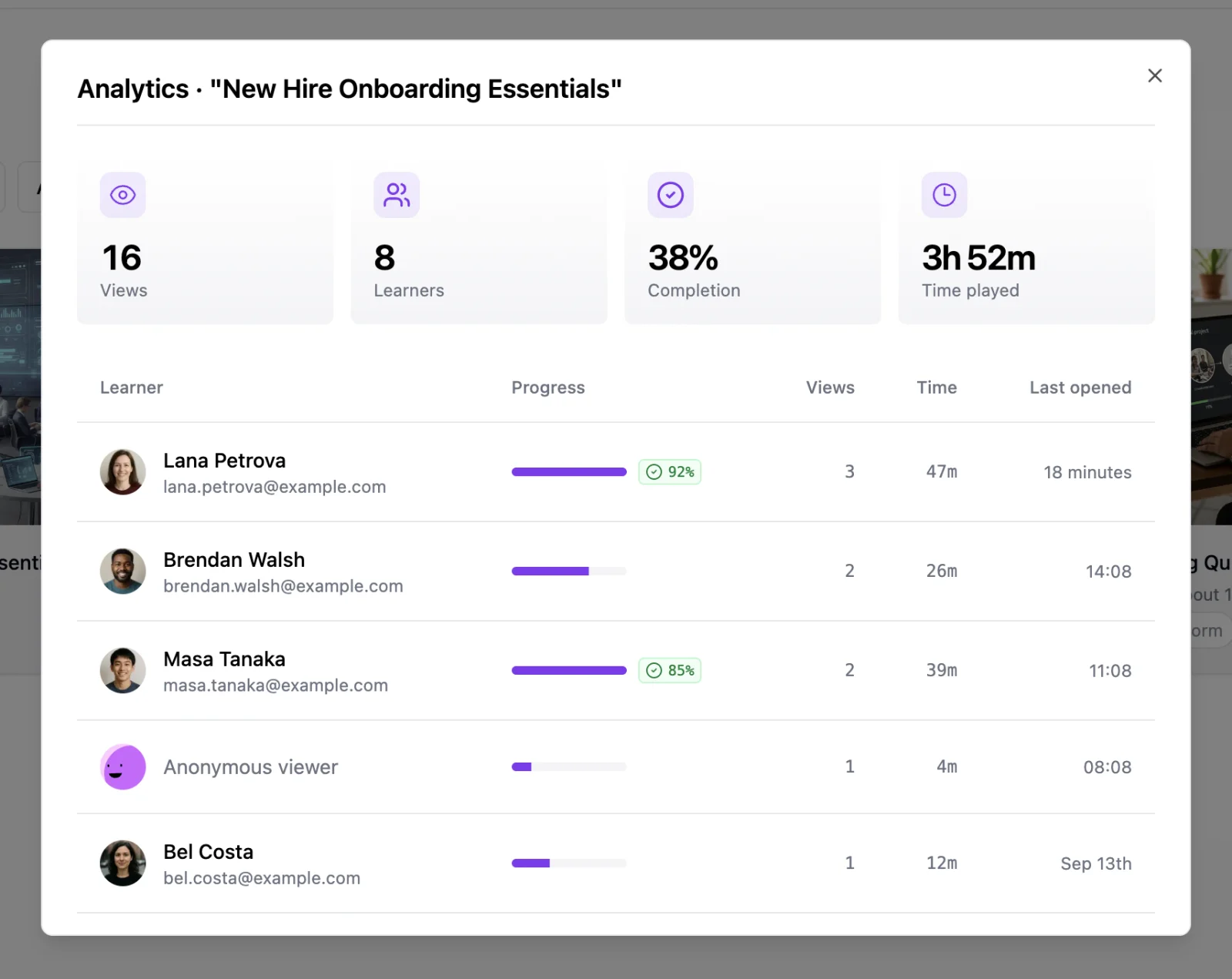
- Tracks who completed orientation
Common Questions
How long does it take to create a course? A simple 30-minute course can be done in 1-2 hours. A comprehensive multi-hour course might take a day or two, mostly spent reviewing and editing AI output.
Will the course sound robotic? Not if you edit it. AI gives you a solid first draft. Your job is to add personality, examples, and adjust the tone. The final result should sound like you wrote it.
Can I update the course later? Yes. Edit any lesson, add new modules, update quizzes. If you exported to SCORM, re-export and upload the new version to your LMS.
What about copyright? Content you create with AI tools is yours. Use royalty-free images from the built-in search. For videos, either create your own or use properly licensed material.
---
Getting Started
The fastest way to learn is to try it. Pick a topic you could teach in 30 minutes. Open LearningStudioAI and describe what the course should cover. Let the AI generate a structure, review it, generate the content, add a quiz, and export.
Your first course won't be perfect. Neither was anyone's. But you'll have a complete, functional course in a fraction of the time it would take to build manually.
The tools are ready. Your expertise is the missing piece. Start building.