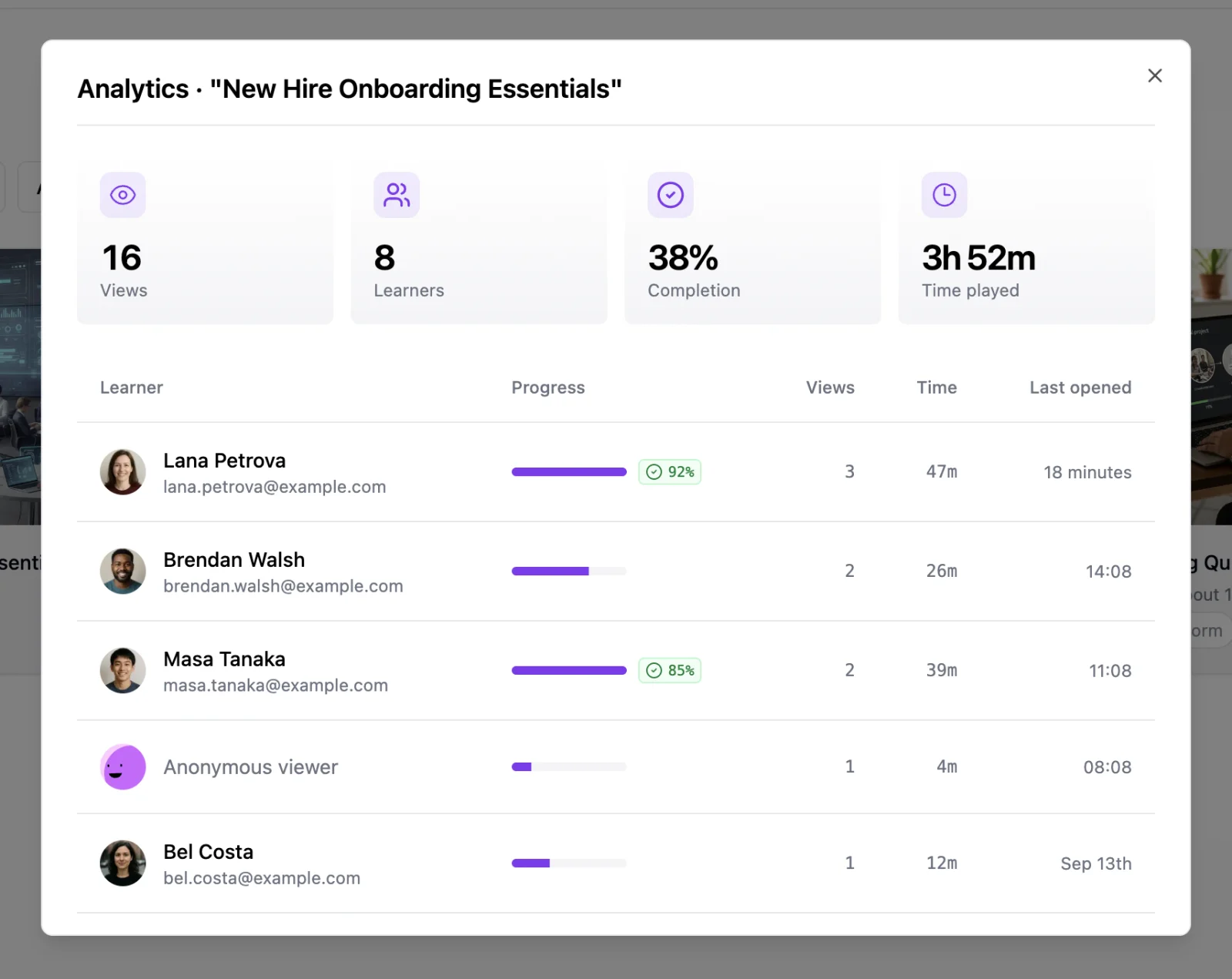
Every course creator has been there. You're building a lesson, the content is flowing, and then you need an image. So you open a new tab, search through stock libraries, download something that's "close enough," upload it, resize it, and try to remember where you left off.
That friction adds up. What should be a creative decision becomes a chore.
Starting today, you can generate and edit images with AI directly inside the LearningStudioAI course editor. No tab-switching and no design skills required.
What's new
The image modal now has two new tabs alongside Search and Upload: Generate and Edit.
Generate lets you describe what you want and get an image in seconds. You type a prompt, pick a visual style, and hit generate. The result appears right there in the editor, ready to drop into your course.
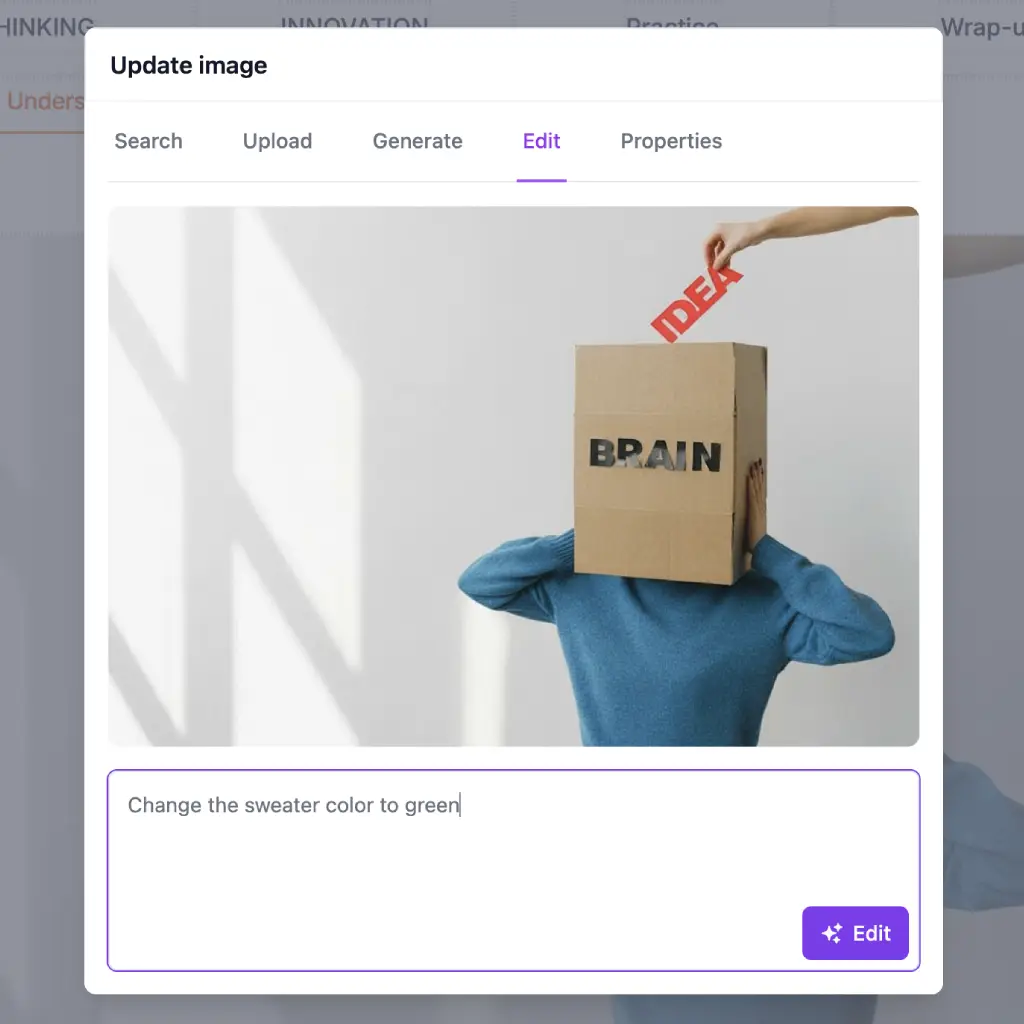
Edit works on any image you already have, whether you generated it, uploaded it, or found it through search. Describe what you'd like to change ("make the background darker," "add a laptop to the desk," "remove the text") and the AI modifies the image while keeping the rest intact.
Both work everywhere images appear in your course: cover images, section backgrounds, and content blocks.
Four visual styles
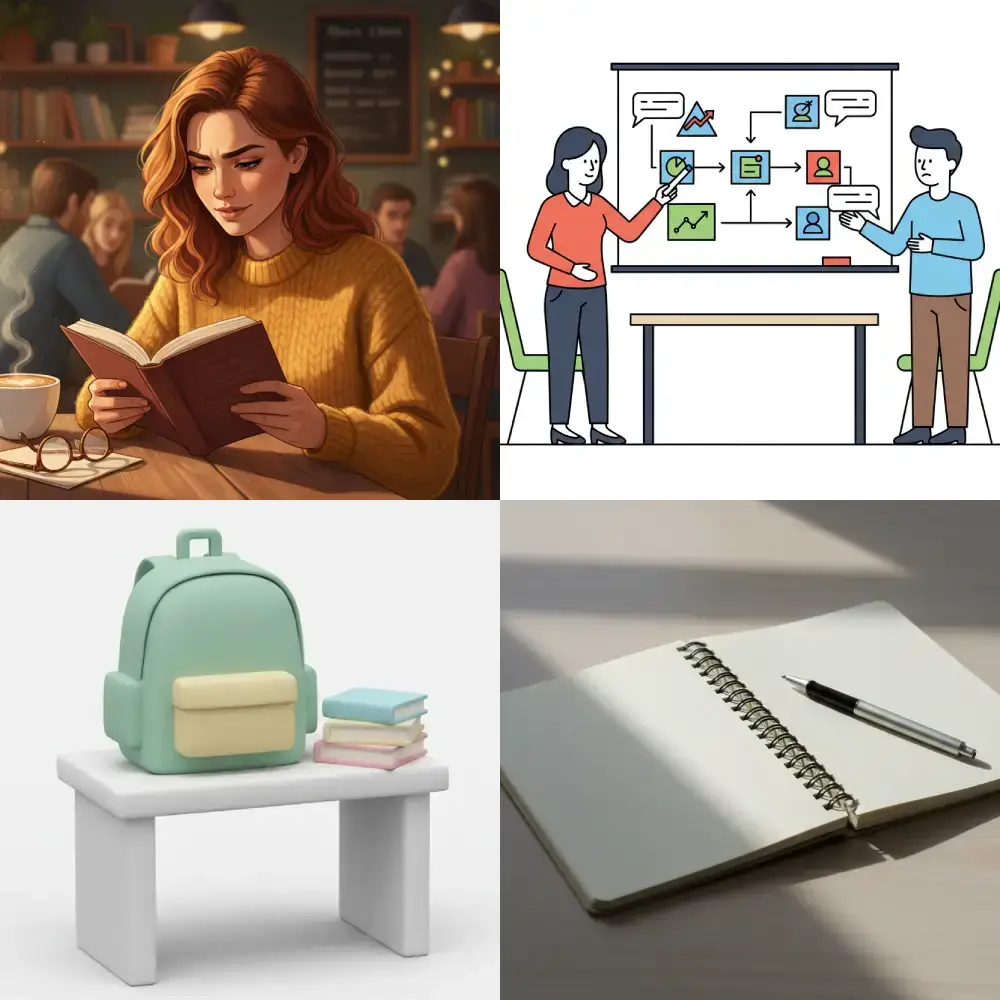
Not every course calls for the same aesthetic. A corporate compliance training doesn't need the same look as a creative writing workshop. That's why we built four style presets you can choose from before generating:
Narrative creates detailed, cinematic illustrations with warm tones and atmospheric lighting. Good for storytelling-heavy courses, history, or any topic where you want to set a scene.
Editorial produces clean, minimalist photography with studio lighting and neutral tones. This is the default, and it works well for business, technology, and professional development courses.
Flat generates bold vector illustrations with thick outlines and solid colors on a white background. Works great for explainer content, step-by-step guides, and anything that benefits from visual simplicity.
3D renders low-poly, clay-style miniatures with soft shadows and pastel colors. A good fit for playful topics, introductory courses, or when you want a more approachable look.
Each style automatically appends the right visual instructions to your prompt, so you only need to describe what you want — not how it should look.
Smart prompt suggestions
Staring at a blank prompt field isn't much better than staring at a stock photo search bar. So we added AI-powered prompt suggestions.
When you open the Generate tab, the AI looks at your course title and the style you've selected, then suggests a prompt. Use it as-is, tweak it, or write your own from scratch.
This is especially useful when you're creating images for multiple sections and need variety without having to brainstorm every prompt from scratch.
The editing loop
Image generation is useful on its own, but the real time-saver is being able to iterate on what you already have.
Say you generate an image and it's 80% right. The composition is good but the colors feel off, or there's an element you didn't ask for. Instead of regenerating from scratch and hoping for better luck, you describe the change you want. The AI edits the existing image, keeping what works and changing what doesn't.
You can stack multiple edits. If one goes in the wrong direction, there's undo/redo support, so you can click back to a previous version and try a different instruction.
Powered by Nano Banana
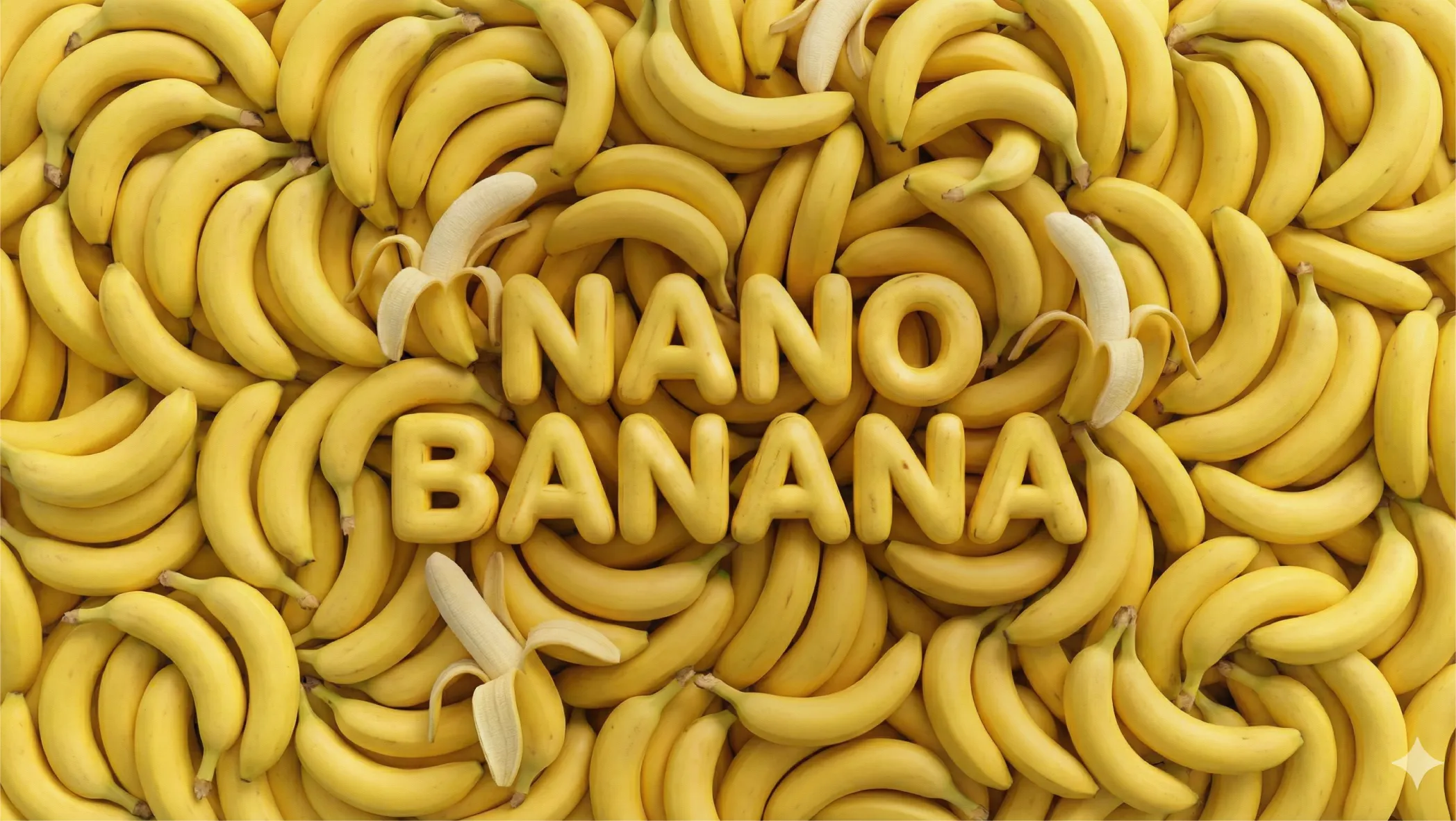
Image generation runs on Google's Nano Banana model. It's fast, with most images ready in under 10 seconds, and it produces clean results across all four styles, whether photorealistic or illustrated.
Where it works
AI image generation and editing work everywhere you can place an image in your course:
- Cover images: generate a custom cover that matches your course topic instead of settling for a generic stock photo
- Section backgrounds: create consistent visual themes across your course sections
- Content blocks: add illustrations, diagrams, or decorative images inline with your lesson content
Available now in beta
AI Images is live today for all paid plans. It's in beta and free to use during this period. Usage limits may apply in the future as we learn how people use it and adjust accordingly.
You'll find the Generate and Edit tabs inside the image modal, wherever you see the option to add an image in your course. Give it a try next time you're building a lesson and need a visual that doesn't exist in any stock library.